Email management
Set up Outlook 365 to be more productive
Display text and icons on the Ribbon.
1.On the Ribbon (menu bar) select the far right arrow.
2.Choose your layout preference. Classic Ribbon displays the menu names & icons.
3.Simplified Ribbon gives you more room.
Tip: Double click any menu title to open or close the ribbon.
My Day, Notifications, Settings & Tips
Display text and icons on the Ribbon.
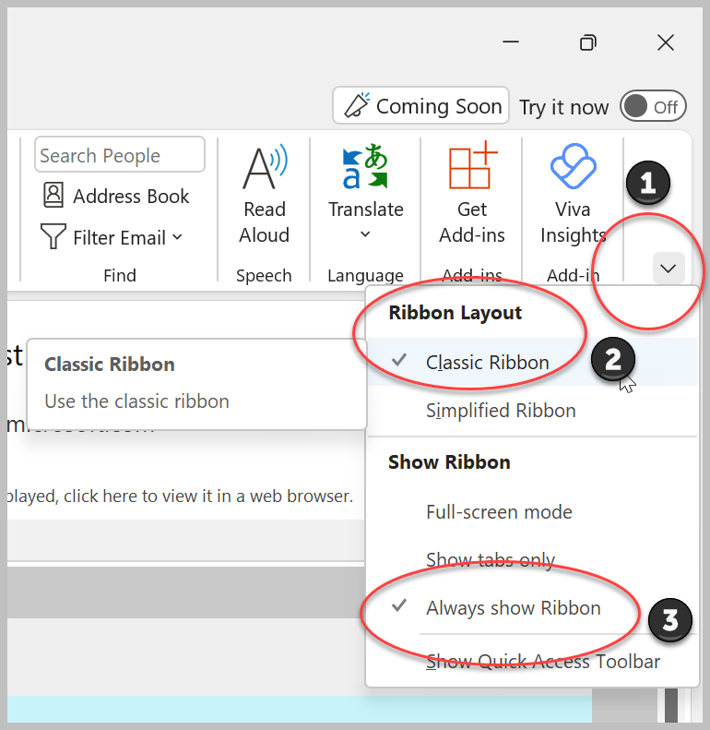
1.On the Ribbon (menu bar) select the far right arrow.
2.Choose your layout preference. Classic Ribbon displays the menu names & icons.
3.Always show Ribbon stops the menu bar (Ribbon) from collapsing.
Tip: Double click any menu title to open or close the ribbon.
Settings option
Display text and icons on the Ribbon.
1.On the Ribbon (menu bar) select the far right arrow.
2.Choose your layout preference. Classic Ribbon displays the menu names & icons.
3.Always show Ribbon stops the menu bar (Ribbon) from collapsing.
Tip: Double click any menu title to open or close the ribbon.
My Day, Notifications, Settings & Tips
1.On the Ribbon (menu bar) select the far right arrow.
2.Choose your layout preference. Classic Ribbon displays the menu names & icons.
3.Always show Ribbon stops the menu bar (Ribbon) from collapsing.
Tip: Double click any menu title to open or close the ribbon.
-
Add a short summary or a list of helpful resources here.
-
Item description